A floating contact bar is the cheapest conversion improvement most B2B sites never get around to. Your visitor is reading a product page, they have one question, and the answer sits three clicks away on a contact page behind a form. Mloun Side Contact PRO puts the conversation one tap away from wherever they actually are — WhatsApp, WeChat, phone, email or your own link, docked to the side of the screen on desktop and to the bottom on phones.
This guide takes you from a fresh install to a working bar in about ten minutes. Two companion posts go deeper: Every Widget Option Explained covers every setting on the customization screen, and PRO Features walks through business hours, display rules, the inquiry form and click insights.
Before you start
- WordPress 6.2 or newer, PHP 7.4 or newer.
- A licence key from your mloun.com account. The free edition of the bar keeps running without one, but the PRO screens stay locked.
- The numbers, usernames or URLs for the channels you plan to show.
1. Install the plugin and activate the licence
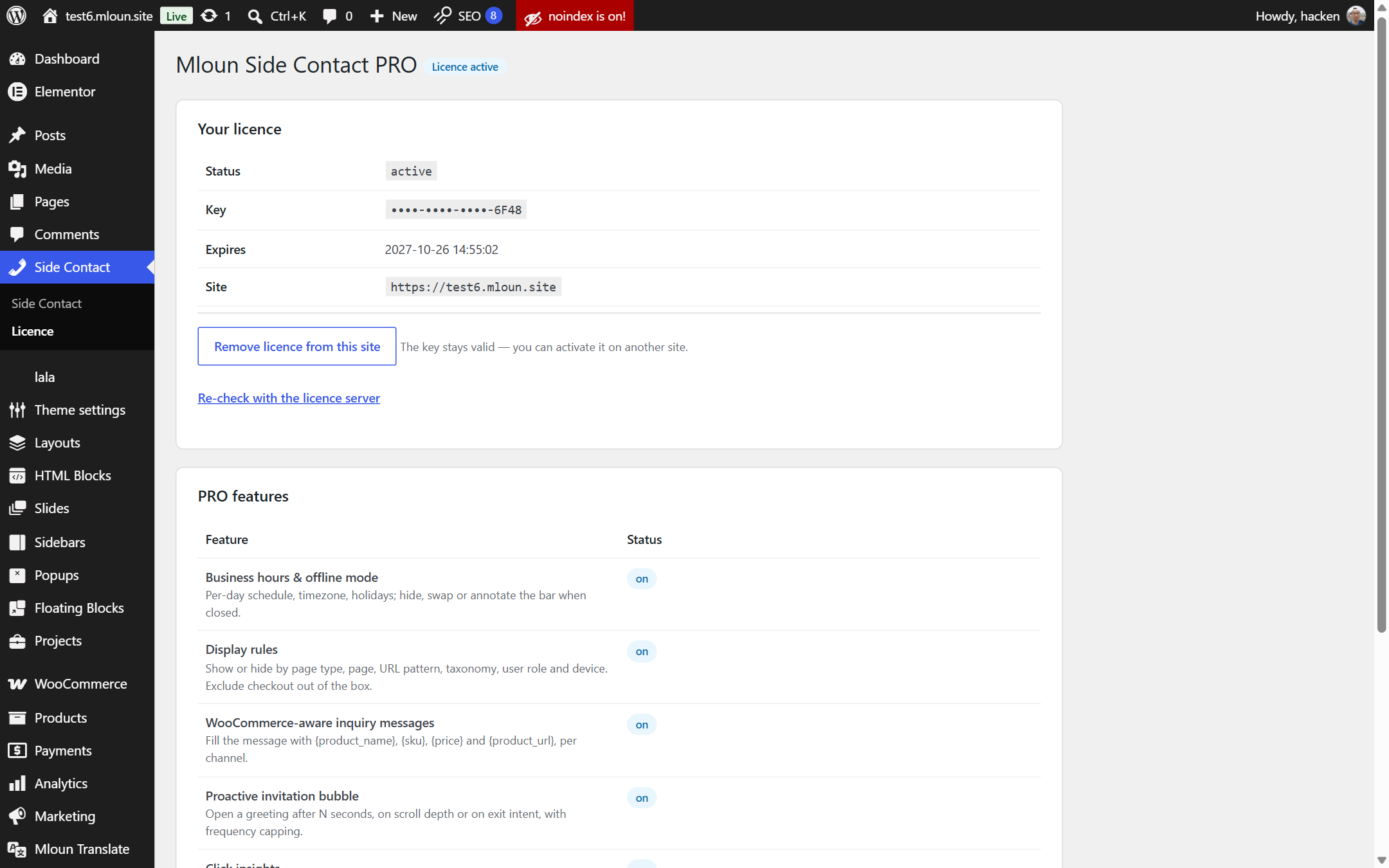
Upload the ZIP through Plugins → Add New → Upload Plugin and activate it. A new Side Contact PRO menu appears in the sidebar.
Open it and paste your licence key into the licence card, then press Activate. A few things worth knowing:
- Each key is bound to a set number of sites. Remove licence from this site frees a slot when you move a staging site to production.
- Re-check with the licence server is your first troubleshooting step if PRO screens lock on a site that should be active — it confirms the site is still bound on our side.
- The licence screen is administrator-only by design. Shop managers and editors never see it.
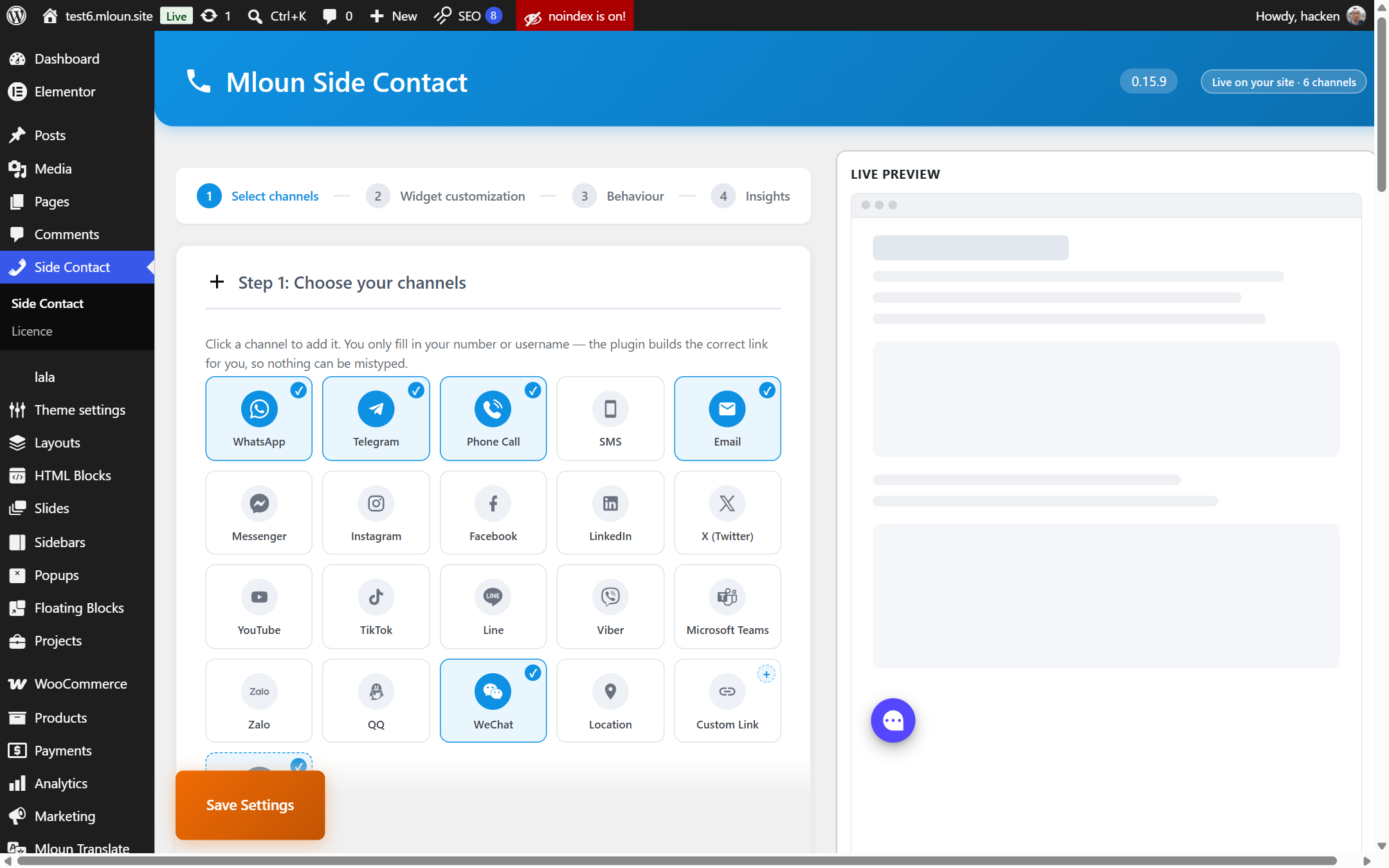
2. Step 1 — add your channels
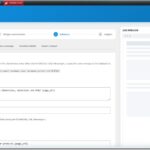
Click a tile to add that channel. You only type your number or username — the plugin builds the correct https://wa.me/..., tel: or mailto: link behind the scenes, so a link can never be mistyped.
Tiles marked with + can be added more than once. That is how you show, say, two different sales contacts, or three custom links to different quote pages.
Per button you can set a display name, an icon, a background colour, a hover colour, which devices it appears on, and a custom CSS class if you want to target it from your theme.
3. Step 2 — make it look like it belongs on your site
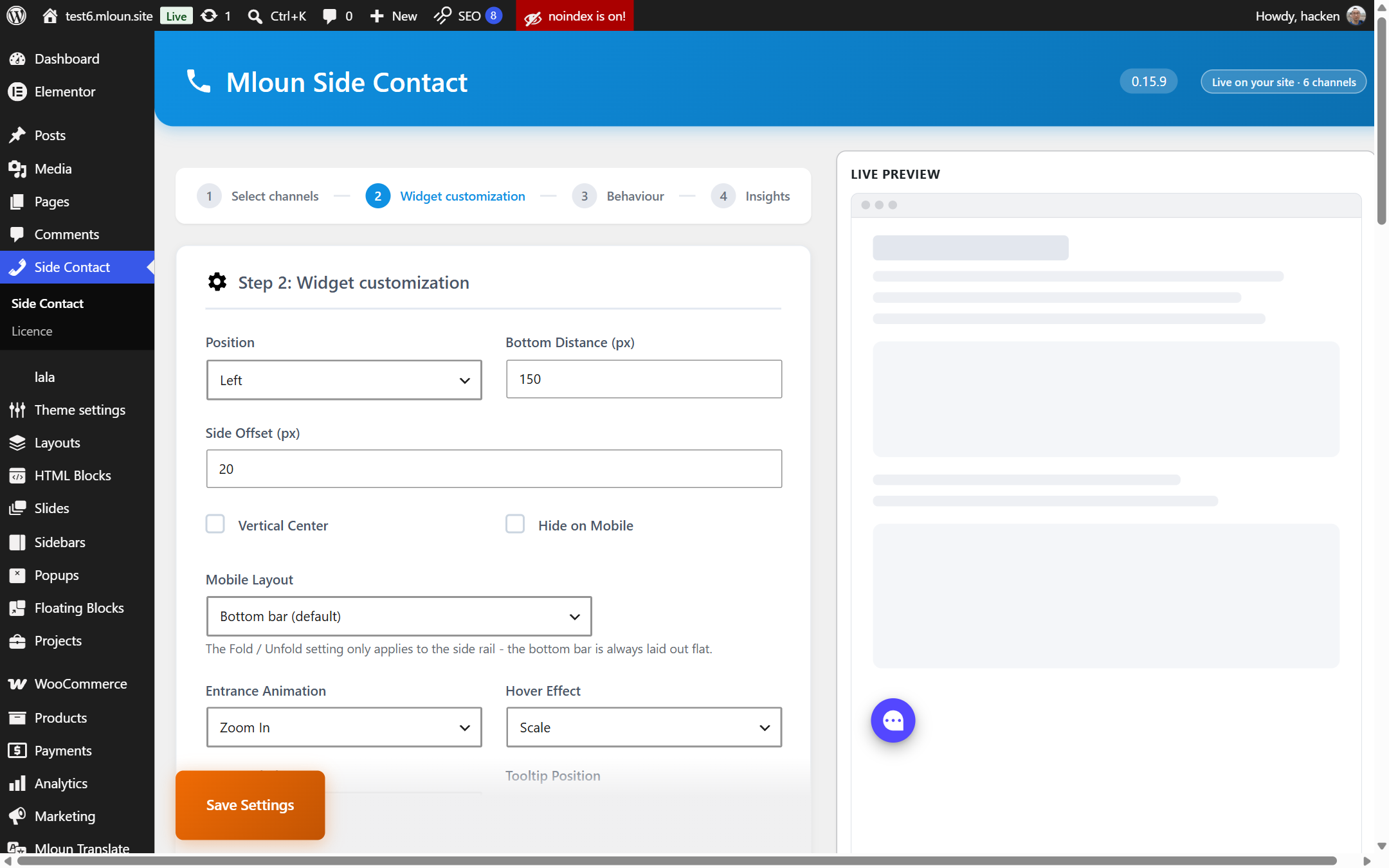
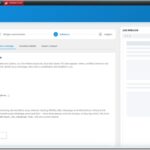
Step 2 is pure presentation. The three settings that matter most on day one:
- Position — left or right edge, plus bottom distance and side offset so the bar clears your theme’s sticky header or cookie banner.
- Style preset — classic, minimal, rounded, square or outline. Match your theme rather than fighting it.
- Size preset — small, medium or large. Medium suits most B2B sites; large only if you run three or four buttons.
4. Pick the phone layout
Desktop visitors get a side rail. Phones are different, so Mobile Layout gives you two deliberate choices:
- Bottom bar (default) — a full-width strip across the bottom of the screen. It always lays out flat: the Fold / Unfold setting is ignored and there is no fold button. Back to Top stays visible at all times.
- Same as desktop side rail — the phone keeps the desktop rail, styling unchanged. Fold / Unfold works exactly as it does on desktop, and Back to Top appears after you scroll 20% of the page, the way it does on a computer.
Both are one dropdown apart, and switching between them changes nothing about how the bar looks — only how it behaves.
5. Check it on the front end
Visit a page as a logged-out visitor (or use a private window so your admin bar does not push the layout around). Confirm four things:
- The bar sits where you expect and does not cover your footer or cookie notice.
- Each button opens the right app or appends the right number.
- On a narrow window, the phone layout behaves per the option you chose.
- Nothing in the bar covers a form or a checkout button.
If a button goes to the wrong place, the fix is almost always in Step 1: the stored value is the WhatsApp number with country code and no plus sign, or the exact WeChat ID, or a full URL for a custom link.
Where to go next
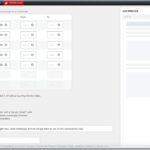
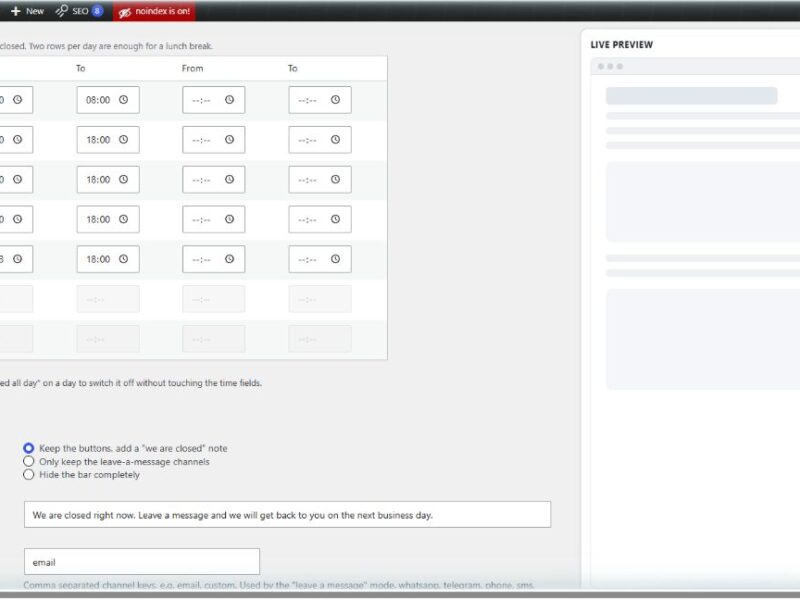
Once the bar is live, the PRO screens are where the real work happens: a schedule so the bar changes outside business hours, display rules so it only appears where it earns its place, an inquiry form for visitors who would rather not open WhatsApp, and click insights so you can see which channel people actually use.
One more thing worth reading: a contact bar fixes the last click, but it cannot fix a page nobody trusts. 12 signs your website is costing you customers covers the other half of the same problem.
- How to Hide a Contact Button on Specific Pages (Rules That Work)

- Catch Cart Hesitation: A Contact Bar on WooCommerce Cart & Checkout
- How to Take Enquiries While You Are Closed (Leave-a-Message Form)
- Contact Buttons for B2B Export Sites: Which Channel Comes First?
- How to Translate Your Contact Bar With TranslatePress or WPML